|
|
|
@@ -32,10 +32,13 @@ The bootloader is also capable of programming an entirely new application to the
|
|
|
|
1. Download the latest release of the firmware update utility from [https://source.jojcorp.com/bia-microddr/bia_microddr_fw_flash_utility/releases](https://source.jojcorp.com/bia-microddr/bia_microddr_fw_flash_utility/releases).
|
|
|
|
1. Download the latest release of the firmware update utility from [https://source.jojcorp.com/bia-microddr/bia_microddr_fw_flash_utility/releases](https://source.jojcorp.com/bia-microddr/bia_microddr_fw_flash_utility/releases).
|
|
|
|
2. Download the latest version of the application from [https://source.jojcorp.com/bia-microddr/bia_microddr_fw/releases](https://source.jojcorp.com/bia-microddr/bia_microddr_fw/releases). This will be a file with the extension ".hex".
|
|
|
|
2. Download the latest version of the application from [https://source.jojcorp.com/bia-microddr/bia_microddr_fw/releases](https://source.jojcorp.com/bia-microddr/bia_microddr_fw/releases). This will be a file with the extension ".hex".
|
|
|
|
3. Connect the device to be updated to the computer now if you have not already done so. **DO NOT CONNECT MORE THAN 1 BIA DEVICE WHILE UPDATING FIRMWARE!**
|
|
|
|
3. Connect the device to be updated to the computer now if you have not already done so. **DO NOT CONNECT MORE THAN 1 BIA DEVICE WHILE UPDATING FIRMWARE!**
|
|
|
|
|
|
|
|
|
|
|
|
|
|
|
|

|
|
|
|
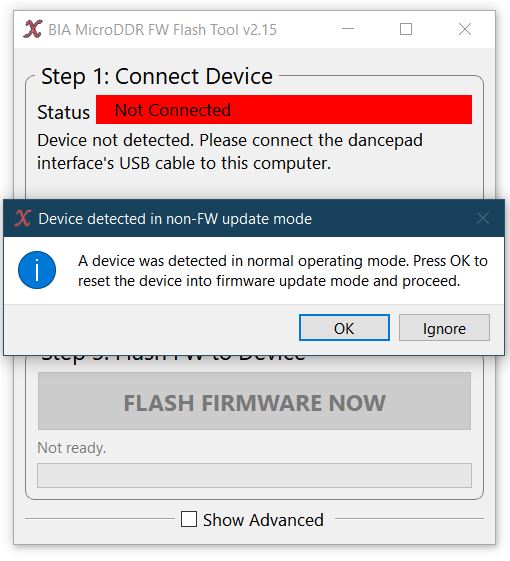
4. Run the firmware update utility and it will notify you that it must put the device in firmware update mode. Click "OK" to continue. The device will very briefly disconnect from the PC and reconnect in firmware update mode. The utility should now display the device as "Connected".
|
|
|
|
4. Run the firmware update utility and it will notify you that it must put the device in firmware update mode. Click "OK" to continue. The device will very briefly disconnect from the PC and reconnect in firmware update mode. The utility should now display the device as "Connected".
|
|
|
|
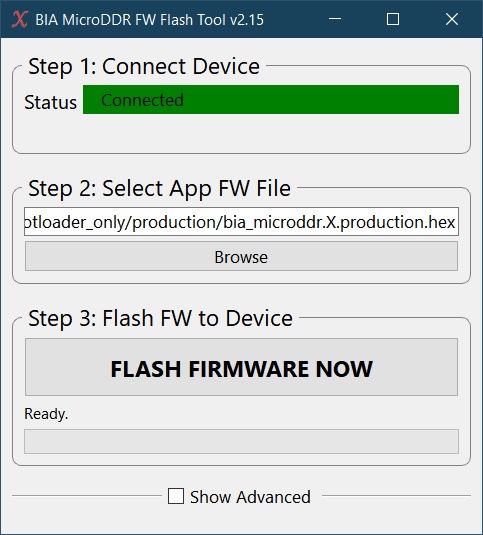
5. Click the "Browse" button under "Step 2: Select App FW File" and open the ".hex" application firmware file you downloaded.
|
|
|
|
5. Click the "Browse" button under "Step 2: Select App FW File" and open the ".hex" application firmware file you downloaded.
|
|
|
|
|
|
|
|
|
|
|
|
|
|
|
|

|
|
|
|
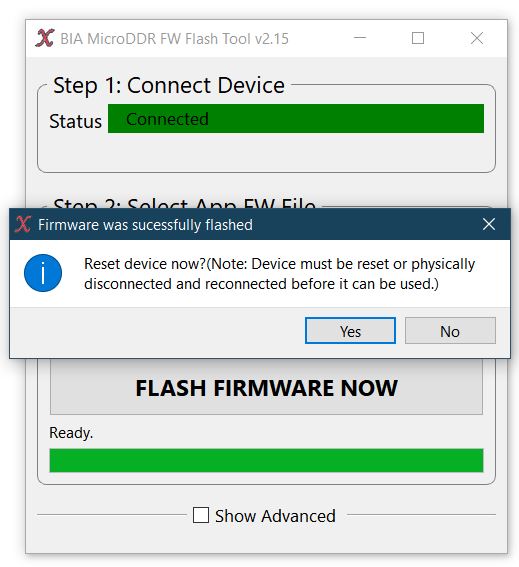
6. Click the "FLASH FIRMWARE NOW" button. The utility will begin updating the application firmware on the device and will open a message dialog to notify you when the update is complete. This should not take more than a few seconds.
|
|
|
|
6. Click the "FLASH FIRMWARE NOW" button. The utility will begin updating the application firmware on the device and will open a message dialog to notify you when the update is complete. This should not take more than a few seconds.
|
|
|
|
|
|
|
|
|
|
|
|
|
|
|
|

|
|
|
|
7. Click "Yes" on the dialog to reset the device or disconnect and reconnect it to boot into the new application firmware.
|
|
|
|
7. Click "Yes" on the dialog to reset the device or disconnect and reconnect it to boot into the new application firmware.
|
