
BIA MicroDDR Bootloader & Application Firmware
Copyright 2019 Justin Byers
This program is free software: you can redistribute it and/or modify it under the terms of the GNU General Public License as published by the Free Software Foundation, either version 3 of the License, or (at your option) any later version.
This program is distributed in the hope that it will be useful, but WITHOUT ANY WARRANTY; without even the implied warranty of MERCHANTABILITY or FITNESS FOR A PARTICULAR PURPOSE. See the GNU General Public License for more details.
You should have received a copy of the GNU General Public License along with this program. If not, see https://www.gnu.org/licenses/.
About
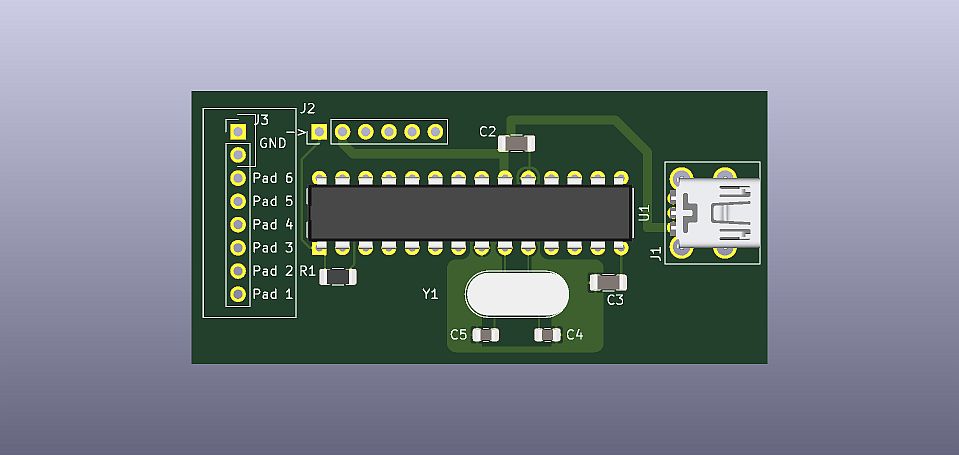
The BIA (Bemani Input Adapter) is an advanced USB interface I designed to work with the different types of buttons/encoders/lights/etc. found on controllers used for the Bemani rhythm games.
The MicroDDR model of the BIA devices is a much more compact interface designed solely to be used with 6 sensor DDR pads.
Guide: Updating Firmware
All BIA devices run 2 separate firmwares: a bootloader and an application. The bootloader is run immediately when the device in powered on and and is normally only responsible for starting the application. The application is what is actually reading the pad states and communicating with the computer over USB.
The bootloader is also capable of programming an entirely new application to the device using a simple PC utility. To update the application firmware on a BIA MicroDDR please follow the steps below.
-
Download the latest release of the firmware update utility from https://source.jojcorp.com/bia-microddr/bia_microddr_fw_flash_utility/releases.
-
Download the latest version of the application from https://source.jojcorp.com/bia-microddr/bia_microddr_fw/releases. This will be a file with the extension ".hex".
-
Connect the device to be updated to the computer now if you have not already done so. DO NOT CONNECT MORE THAN 1 BIA DEVICE WHILE UPDATING FIRMWARE!
-
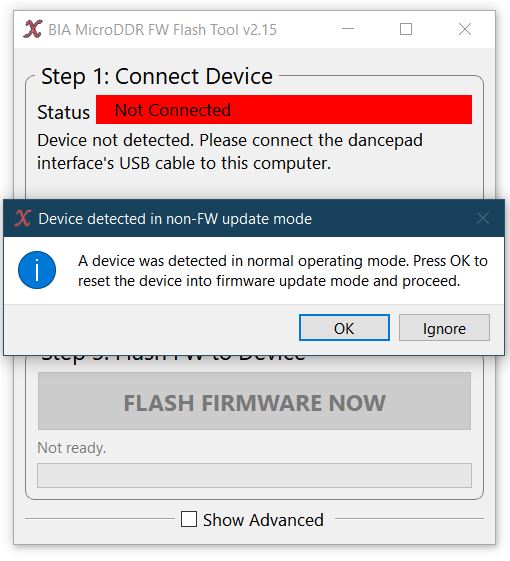
Run the firmware update utility and it will notify you that it must put the device in firmware update mode. Click "OK" to continue. The device will very briefly disconnect from the PC and reconnect in firmware update mode. The utility should now display the device as "Connected".
-
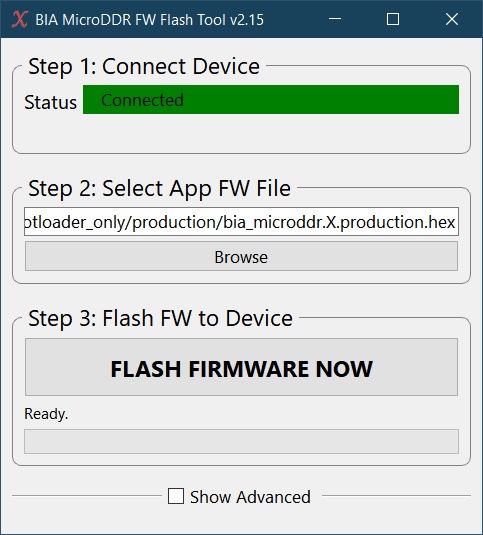
Click the "Browse" button under "Step 2: Select App FW File" and open the ".hex" application firmware file you downloaded.
-
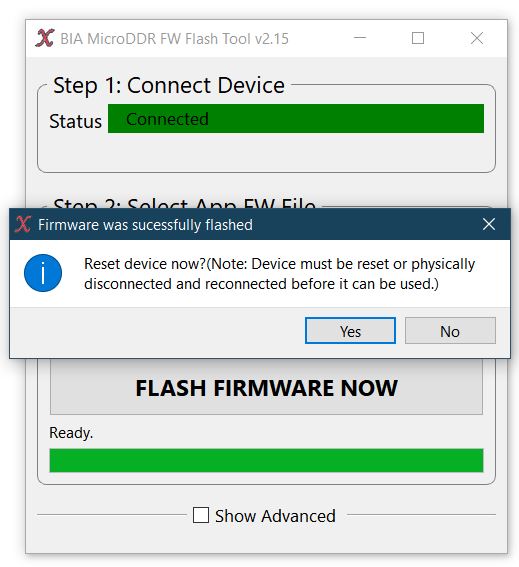
Click the "FLASH FIRMWARE NOW" button. The utility will begin updating the application firmware on the device and will open a message dialog to notify you when the update is complete. This should not take more than a few seconds.
-
Click "Yes" on the dialog to reset the device or disconnect and reconnect it to boot into the new application firmware.